
Access files from other devices
Besides the Files app, your shared folders can be opened from other computers and devices as a network drive or through a file transfer program. Pithyx offers four ways: SMB, SFTP, WebDAV and FTP. You sign in with your Pithyx user name and password. Ask an administrator which of them are switched on for you.
In the steps below, <box-address> is the name or IP address you use to open the desktop, for example 192.168.1.50.
Which protocol to use
Section titled “Which protocol to use”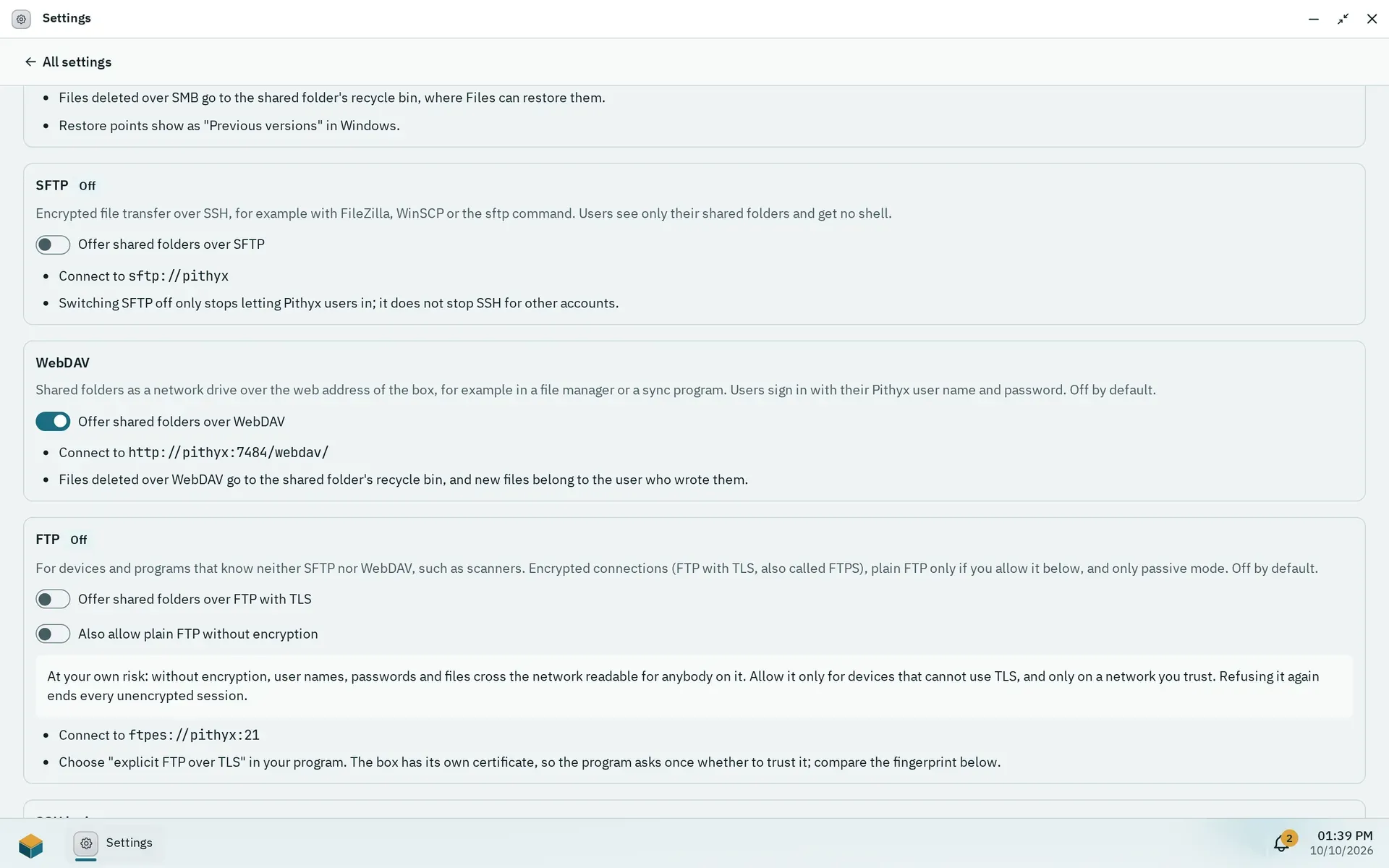
An administrator switches the file services on in Settings > File services; each card shows the address to use.
| Protocol | Use it for | Notes |
|---|---|---|
| SMB | A network drive on Windows, macOS and Linux for everyday work | Needs SMB 3. Older systems cannot connect. Previous versions and the recycle bin work. |
| SFTP | Encrypted transfers with a program such as FileZilla or WinSCP, or the sftp command |
You see only your home and shared folders and get no shell. Password sign-in only. |
| WebDAV | Programs and file managers that can mount a web folder | Address: https://<box-address>:7484/webdav/ |
| FTP | Devices that know neither SFTP nor WebDAV, such as scanners | Only passive mode. Encrypted with TLS; plain FTP only if an administrator allows it. |
Everyone sees only the shared folders their rights allow, with the access level an administrator gave them: no access, Read or Read and write. Administrators reach every shared folder.
Your home folder
Section titled “Your home folder”Besides the shared folders, every user has a private home folder that only they and the administrators can open. It is the share home over SMB (\\<box-address>\home on Windows, smb://<box-address>/home on macOS and Linux) and the folder home at the top over SFTP, WebDAV and FTP. Administrators also find every user’s home in the share or folder homes. Files you delete in your home go to its recycle bin, except in the SMB share homes, where they are gone at once. See Home folders.
Two-factor sign-in does not apply here. These services ask for your password only.
Windows
Section titled “Windows”SMB (network drive)
- Open File Explorer.
- Click the address bar, type
\\<box-address>\and press Enter. - Sign in with your Pithyx user name and password when asked. Tick the option to remember the credentials if you like.
- Your shared folders appear. To keep one as a drive letter, right-click it and choose Map network drive.
The box does not announce itself on the network, so it does not appear under Network in Explorer. Always type the address. In Explorer, Previous versions shows the daily restore points of a shared folder. Files you delete land in the recycle bin of the shared folder, and you can restore them in the Files app.
SFTP and FTP: install a program such as FileZilla or WinSCP and connect to <box-address>.
WebDAV: in File Explorer, right-click This PC, choose Map network drive and enter https://<box-address>:7484/webdav/. Windows connects only once it trusts the box’s root certificate. If it still refuses, use SMB or a WebDAV program instead.
SMB (network drive)
- In Finder, choose Go, then Connect to Server.
- Type
smb://<box-address>/and click Connect. - Sign in with your Pithyx user name and password.
SFTP: Finder cannot browse SFTP. Use an SFTP program and connect to sftp://<box-address>.
WebDAV: in Connect to Server, enter https://<box-address>:7484/webdav/. macOS connects once it trusts the box’s root certificate.
FTP: use a program that supports FTP with TLS, and choose “explicit FTP over TLS”.
SMB: most file managers accept smb://<box-address>/ in the address bar. On the command line you can mount with mount -t cifs and vers=3.0.
SFTP: use sftp://<box-address> in your file manager, or run:
sftp <user>@<box-address>SFTP accepts passwords only. Public keys are not used for SFTP users.
WebDAV: a file manager with WebDAV support accepts davs://<box-address>:7484/webdav/.
FTP: use a client with explicit FTP over TLS, such as lftp.
Phones
Section titled “Phones”There is no special app. Any app that speaks SMB 3, SFTP, WebDAV or FTP with TLS can connect with the settings above. Or use the desktop itself: it works in a phone browser, including the Files app. See The desktop.
For FTP, the box has its own certificate. Your program asks once whether to trust it. Compare the fingerprint it shows with the Certificate fingerprint (SHA-256) that an administrator can read in Settings, under File services. FTP listens on port 21 and passive data connections use ports 50000 to 50099.
Signing in
Section titled “Signing in”- Use your Pithyx user name (in lower case) and password.
- Your account needs the right for the protocol: SMB (network drives), SFTP, WebDAV or FTP. New users get the SMB right by default. An administrator gives you the others.
- Your account must be active.
- SMB and SFTP: if a connection with the right password is refused, sign in once on the web desktop, or ask an administrator to set a new password for you. The services learn your password that way.
- After five wrong attempts for the same user name from the same address within five minutes, further attempts are paused for a short time.
- Files you create belong to your account on the box. You cannot change permissions from Windows.
- If a protocol is switched off, you cannot connect with it. An administrator turns services on in Settings, under File services. See File services.
If something does not work, the usual causes are a missing right, a deactivated account, or a protocol that is switched off.