
Backup and restore
Settings > Backup and restore saves the configuration of the box (users, shared folders, file services, schedules and more) into one password-protected file and restores it later. It does not back up the files on your pools. Backups are manual: there is no schedule.
Creating a backup
Section titled “Creating a backup”- Open Settings > Backup and restore and choose “Create a backup”.
- Enter a backup password and repeat it. It must meet the normal password rules (at least 8 characters, not a well-known password).
- Choose Create and download. The file is named
pithyx-config-<host>-<yyyyMMdd-HHmm>.pithyxbackup.
The file is encrypted with AES-256-GCM under a key derived from the password with Argon2id (64 MiB, 3 passes). The archive may be up to 16 MB and 256 MB unpacked (system.backup.too_large). It holds password hashes and keys, so protect it like a secret.
What it holds
Section titled “What it holds”Categories you can choose when restoring:
- Users and groups: accounts, groups, passwords (also for SMB and SFTP), two-factor sign-in, the recovery key, personal settings and desktop layouts.
- Shared folders and file services: shared folders with their rights and the SMB, SFTP, WebDAV and FTP settings.
- Storage settings: snapshot schedules (restore points), scrub and self-test schedules.
- System settings: language, formats, time zone, time servers and log retention.
- Certificates and keys: the box’s certificate authority and certificates, uploaded certificates of reverse proxy hosts, and the SSH host keys, when present.
- Reverse proxy: proxy hosts (with Basic Auth users as hashes), redirect hosts, streams, what unknown names get and the sign-in address.
- Apps: the app registry, permissions, folder mappings, catalogs and the app pool. The apps’ files and data stay on the pool.
Not included: files on pools, app data, logs, Docker data, sessions, jobs, notifications, the recycle bin index, and the network settings (cards are named differently on other hardware).
Restoring
Section titled “Restoring”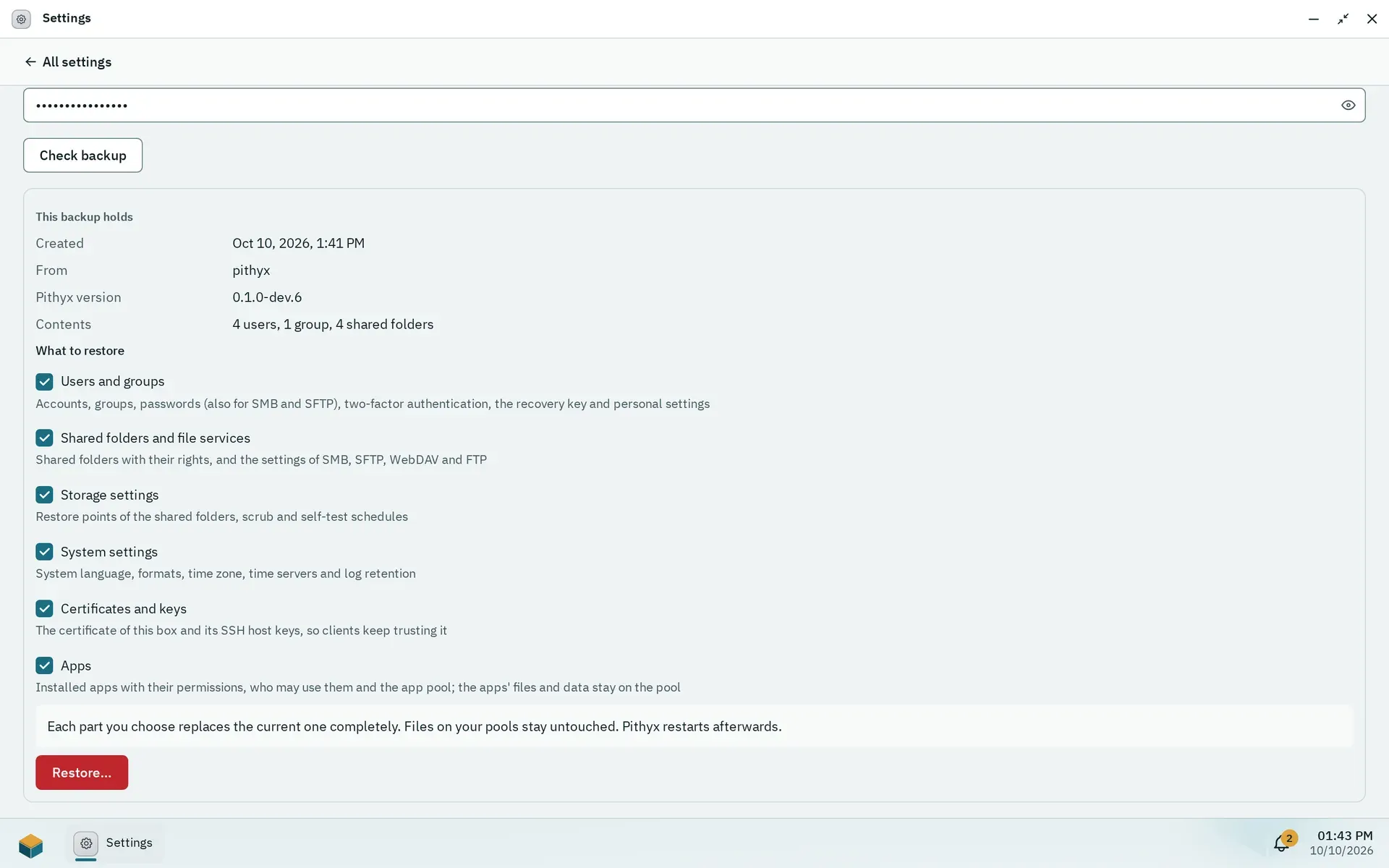
Check backup shows what the file holds; nothing changes until you choose Restore.
- Choose the file, enter its password and choose Check backup. Nothing changes yet.
- The page shows “This backup holds”: when it was created, from which host, the Pithyx version and counts of users, groups and shared folders.
- Under “What to restore”, tick the parts, then choose Restore… and Restore now.
A checked backup waits 15 minutes (system.backup.restore_expired). Each part you choose replaces the current one completely; files on your pools stay untouched; Pithyx restarts afterwards. Restoring users signs everybody out, including you; sign in with an account and password from the backup. Before the restore the database is copied to pithyx.db.pre-restore-<time>.bak next to it. If the restore fails, nothing is changed. Some steps (Linux accounts, passwords for SFTP, SSH and SMB, time zone, certificates, SSH host keys) can report problems; the Log Center has the details.
A backup made by a newer Pithyx cannot be restored (system.backup.too_new); a wrong password gives system.backup.password_wrong. Restoring works from Settings on a box that finished first setup; it is not part of the setup itself.