
Storage and pools
The Storage app (administrators only) creates and manages the ZFS pools that hold all data on the box. Pithyx never uses the system disk for a pool, shows for every disk whether it may be used, and asks you to type the disk’s serial number before it wipes a disk that holds data. Changes run in the background, and Show commands lists the exact commands before anything runs.
Disk verdicts
Section titled “Disk verdicts”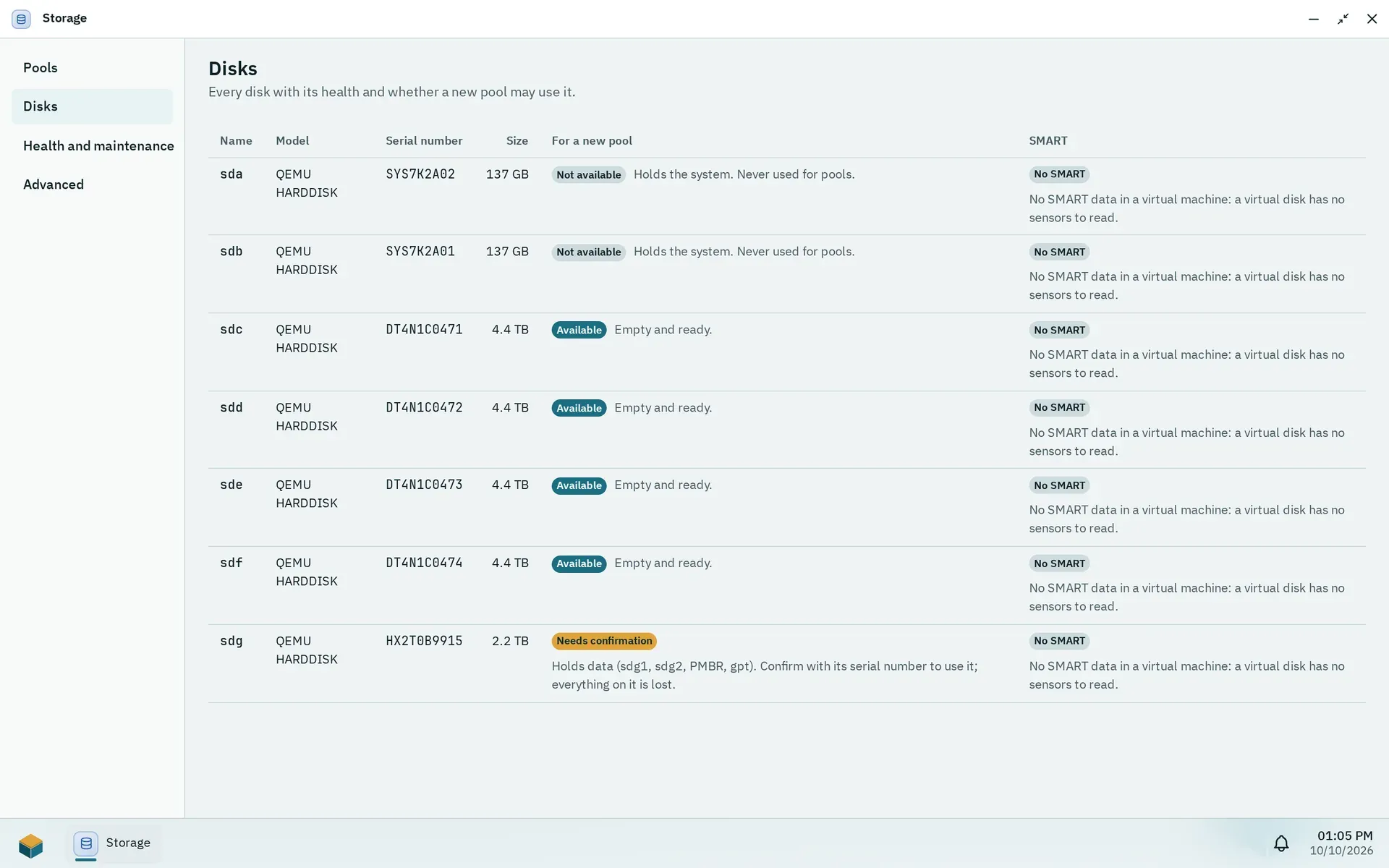
The Disks tab says for every disk whether a new pool may use it.
The column For a new pool shows one of three verdicts per disk: Available, Needs confirmation or Not available. Pithyx re-checks the verdict right before each command of a plan, so a disk that changed after you looked is caught.
A disk is Not available when:
- it holds the system (
/,/boot,/boot/efior/var/lib/pithyx, also through partitions, LVM, md or another pool): “Holds the system. Never used for pools.” - it is read-only, or a file system on it is in use;
- it is already part of a pool;
- another disk reports the same serial number, so the two cannot be told apart;
- it holds data but has no serial number to confirm with.
A disk Needs confirmation when it has partitions, file systems or other signatures, or has not been checked yet. For a disk with contents Pithyx says “Holds data” and lists the partitions, file systems and signatures it found. Type its serial number exactly as shown to use it. Empty disks are Available. A replacement disk (see below) always needs its serial, even when it is empty.
If a disk changed after the plan was shown, nothing is changed and you get storage.plan.stale. A plan expires after 10 minutes (storage.plan.expired); show it again.
Creating a pool
Section titled “Creating a pool”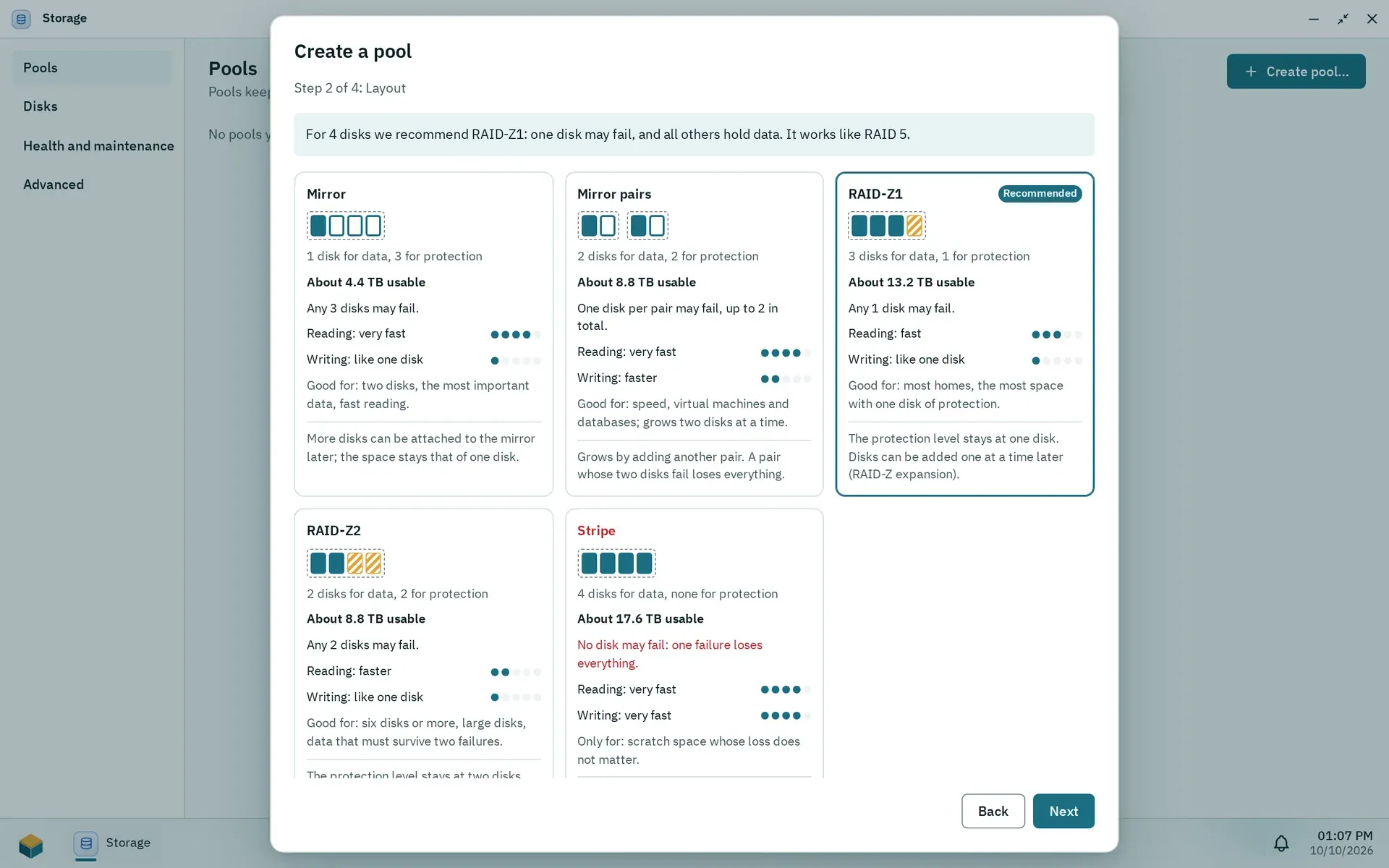
Step 2 of the wizard compares the layouts for the chosen disks and marks the recommended one.
Open Storage and choose Create pool…. The wizard has four steps: Disks, Layout, Encryption and Name and check. Disks are addressed by their /dev/disk/by-id names, so a pool survives a changed port or cable.
| Layout | Minimum disks | Notes |
|---|---|---|
| Single disk (no redundancy) | 1 | exactly one disk |
| Stripe | 2 | one failed disk loses everything |
| Mirror | 2 | |
| Mirror pairs | 4 | an even number of disks |
| RAID-Z1 / RAID-Z2 / RAID-Z3 | 3 / 4 / 5 | one / two / three disks may fail |
The wizard recommends a layout: one disk single, two disks mirror, three to five disks RAID-Z1, six or more RAID-Z2. With disks of different sizes every disk counts as large as the smallest, and the wizard tells you how much stays unused.
The pool name starts with a lowercase letter, then lowercase letters, digits, - or _, at most 32 characters. The names mirror, raidz, raidz1 to raidz3, draid, spare, log, cache, special, dedup and pithyx, and names that start with c0, are reserved.
Every new pool gets the same options: ashift=12, compression=lz4, xattr=sa, acltype=posixacl, atime=off, normalization=formD. Pithyx then creates its dataset layout below <pool>/pithyx: shares, homes, apps, system and cache (quota 2.5 GiB, no compression, no automatic snapshots). A pool that Pithyx did not create has no pithyx dataset, and Pithyx creates nothing on it (storage.pool.not_prepared).
Other pool actions: Replace… (always asks for the serial), Add hot spare…, Remove spare, Take offline, Bring online and Destroy pool….
A pool shows one of these states: Healthy, Degraded, Faulted, Offline, Unavailable, Removed, Suspended, Unknown or “Not connected”. On a degraded pool a disk that comes back is rebuilt on its own (resilver). The daemon brings a returning disk back with zpool online and then zpool clear, each with a 30 second timeout.
Datasets and restore points
Section titled “Datasets and restore points”Under Advanced, Datasets > Show datasets lists datasets with Name, Used, Free, Limit, Compression and the folder or size. Dataset names use letters, digits, ., - and _, start with a letter or digit and are at most 64 characters.
- Rename… moves the folder; shared folders follow.
- Limits… sets Quota, Reservation, Compression and Record size. An empty quota or reservation means no limit. Compression: off, lz4, zle, zstd (levels 1 to 19) or gzip (1 to 9). Record size: a power of two from 4 KiB to 1 MiB, default 128 KiB.
- Delete… asks for the full dataset name and lists child datasets and snapshots.
Datasets of homes, apps and the system cannot be renamed or deleted (storage.dataset.managed), and a dataset used by a shared folder must lose that shared folder first. Pithyx creates no volumes (block devices) yet: nothing in this version uses one, since iSCSI and virtual machines are not built. Volumes that exist on a pool show in the table and under Advanced, where you can delete them.
The Storage app has no snapshot section. Snapshots reach the interface as restore points: one switch per shared folder in Settings > Shared folders, which takes a snapshot of the folder’s dataset once a day and keeps the newest 7, and Previous versions in Files to get older versions back. See Shared folders. Manual snapshots, holds, rolling back a dataset and other schedules are not in the interface.
Importing and exporting
Section titled “Importing and exporting”Import a pool… scans the labels of every disk when you press Scan disks; the scan may wake sleeping disks and never runs by itself. A pool is first imported read-only as a preview (shown as “Read-only (preview)”): nothing is mounted and nothing changes. Then choose Import for use…, which imports it again and mounts the datasets that are safe to mount, or Export to end the preview (storage.import.preview_required if you skip the preview).
Datasets that cannot be mounted safely stay unmounted (canmount=noauto) with a reason: they would cover a system folder, hide something that is mounted there, share a folder with another dataset, or are encrypted and locked. Shared folders and apps on them stop.
A pool last used by another system shows “Used by another system”. It needs Import it anyway (force) and the pool name typed (storage.import.force_required). If the name is taken, choose New name for the pool. Export… unmounts the datasets and lists what becomes unavailable; the data stays on the disks and the pool can move to another system.
Growing a pool
Section titled “Growing a pool”Add disks… adds a new group of disks (a vdev) to the pool: single, mirror (2 disks), RAID-Z1 (3), RAID-Z2 (4) or RAID-Z3 (5). The dialog warns when the new group lowers redundancy, when its layout differs from the existing ones (this needs the pool name typed), and that the disks can never be removed from the pool again.
Expand with a disk… widens a RAID-Z group by one disk. The pool stays usable, the step is irreversible and asks for the pool name, one expansion runs at a time (storage.pool.expanding), and data already on the pool keeps its old ratio of data to parity until it is written again.
Encryption
Section titled “Encryption”Pool encryption is not available in this version. The wizard asks “Should the pool be encrypted?” and the answer is mandatory; No encryption works and Encrypt with a key is refused with storage.encryption.unavailable. A pool cannot be encrypted afterwards.
Health and warnings
Section titled “Health and warnings”Administrators get a desktop notification when a storage alert appears or worsens, and a second one that starts with “Resolved:” and names the problem when it clears. Alerts cover: pool suspended, degraded, faulted or offline, a missing disk, data errors, scrub errors, a pool 80 percent full (warning) or 90 percent full (critical), and failing or worrying SMART values. You can mute an alert for yourself.
- Scrub now, pause, resume and stop. A schedule per pool: Off, Weekly or Monthly (default Monthly).
- SMART is read with
smartctl -n standby(30 second timeout), so sleeping disks stay asleep. States: Healthy, Warning, Failing, No SMART, Unknown. Short self-tests run weekly and long ones monthly by default; a sleeping disk is skipped and retried later, never woken.