
The desktop
The Pithyx desktop is the page you open in your browser at https://<box-address>:7484. It works like a normal computer desktop: apps open in windows, a taskbar shows what is running, and you can put shortcuts and sticky notes on the desktop. The box remembers your windows for each device you use.
Signing in
Section titled “Signing in”- Open
https://<box-address>:7484in your browser. Port 80 forwards to it. - Type your User name and Password and click Sign in.
- If you turned on two-factor sign-in, type the code from your authenticator app and click Verify. If you lost your phone, click Use a recovery code instead.
You need the right Sign in to the desktop. If your account is deactivated or lacks the right, an administrator has to change that.
After five wrong attempts for the same user name from the same address within five minutes, sign-in pauses for a short time and tells you how many seconds to wait.
To sign out, open the Pithyx menu and click the Sign out button at the bottom, next to the power button.
Forgot your password? Click Forgot password? on the sign-in page. Pithyx cannot reset a password by email: ask an administrator to set a new one. Administrators can use the recovery key. See Recovery and reinstall.
The sign-in page has its own language selector in the footer. The first time the box is set up, the owner account is created in the installer; see First setup.
Windows and snapping
Section titled “Windows and snapping”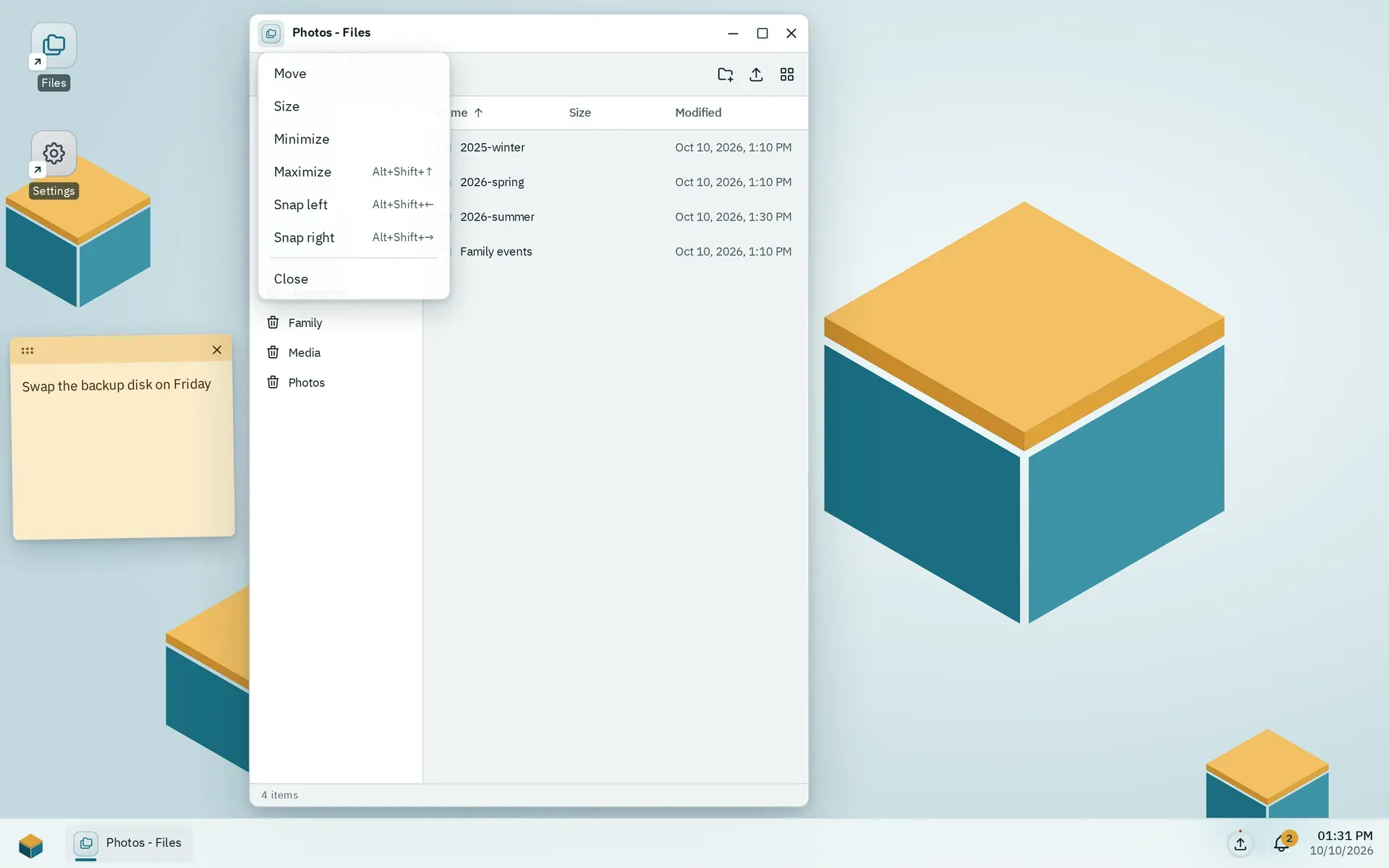
The app icon in the title bar opens the window menu with the keyboard shortcuts for snapping.
Every app opens in a window. What you can do with a window depends on the width of your browser:
- 1024 pixels or wider: free windows. You can move and resize them and snap them to the screen edges.
- 600 to 1023 pixels (tablets): windows fill the screen. Snapped windows share the screen as left and right halves.
- Under 600 pixels (phones): one app at a time, full screen.
On a wide screen:
- Drag the title bar to move a window. Drag any edge or corner to resize it.
- Double-click the title bar to maximize the window, and again to restore it.
- Drag a window to the left or right edge to fill half of the screen, or to the top edge to maximize it. On very wide screens (2400 pixels or more) the edges give thirds.
- Drag a maximized or snapped window away from the edge to get its free size back.
- The title bar has Minimize, Maximize (or Restore) and Close buttons.
- Click the app icon at the left of the title bar for the window menu: Restore, Move, Size, Minimize, Maximize, Snap left, Snap right and Close. Move and Size let you use the arrow keys (16 pixels per press, with Shift 1 pixel), Enter to confirm and Escape to cancel.
New windows open slightly offset from each other. You can have at most 50 windows open. Beyond that, opening another app does nothing.
If an app does not answer for five seconds, a dialog says that the app is not responding. Click Wait or Close anyway; closing anyway loses changes the app has not saved.
The taskbar
Section titled “The taskbar”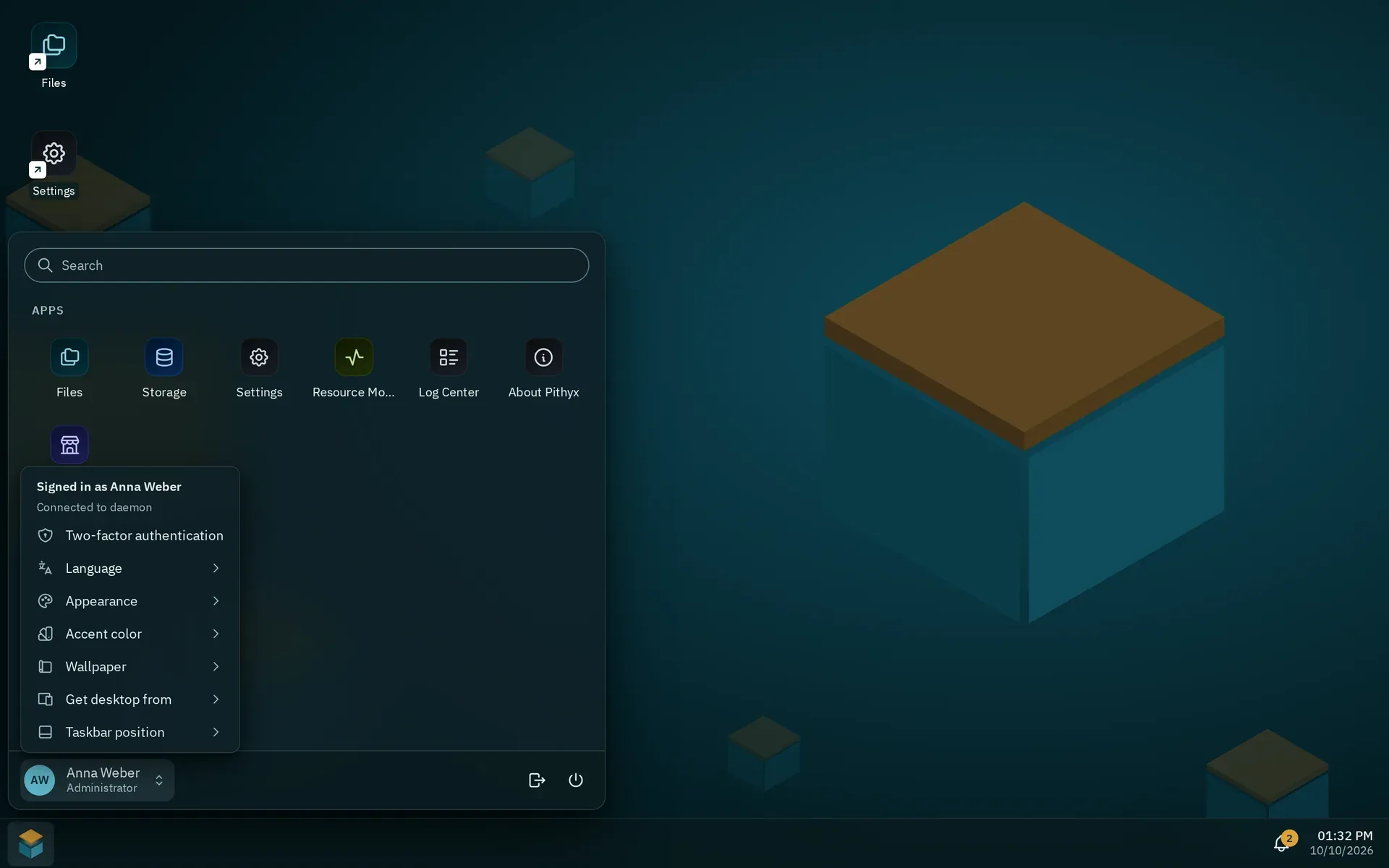
The account menu opens when you click your name at the bottom of the Pithyx menu.
By default the taskbar is at the bottom of the screen. From the left it has:
- the Pithyx menu button,
- one button per running app,
- the app switcher, with the number of open apps,
- the transfers button, while files are being uploaded or downloaded,
- the running tasks button,
- the notifications bell, with a badge for unread notifications,
- the clock.
When more apps run than fit, their buttons get narrower and then scroll: turn the mouse wheel over them or swipe, and the active app always comes into view. The menu button and everything from the transfers button to the clock stay in place.
Click a running app to bring it to the front. Click the active app again to minimize it. Right-click a running app (or press Shift+F10 on it) for Minimize or Restore, Add to desktop and Close.
To move the taskbar, open the Pithyx menu, click your name, choose Taskbar position and pick Bottom, Top, Left or Right. On phones the taskbar always stays at the bottom and the entry is missing.
The Pithyx menu opens with the button at the left of the taskbar, or by pressing and releasing the Windows or Command key. It lists your apps and has a search field. The search field finds apps by name only; settings and files are not found there, and the list of recent files stays empty. Your account menu (click your name) has:
- Two-factor authentication
- Language
- Appearance, Accent color and Wallpaper
- Get desktop from
- Taskbar position (not on phones)
At the bottom of the Pithyx menu, next to your name, are the Sign out button and, for administrators and users with the right Restart and shut down, the Power options button with Restart and Shut down. Both sign every user out and stop file transfers.
Notifications. The bell opens a panel with Running tasks and Recent notifications. Use Dismiss, Mute or Clear all. Press Escape to close the panel.
Desktop items and notes
Section titled “Desktop items and notes”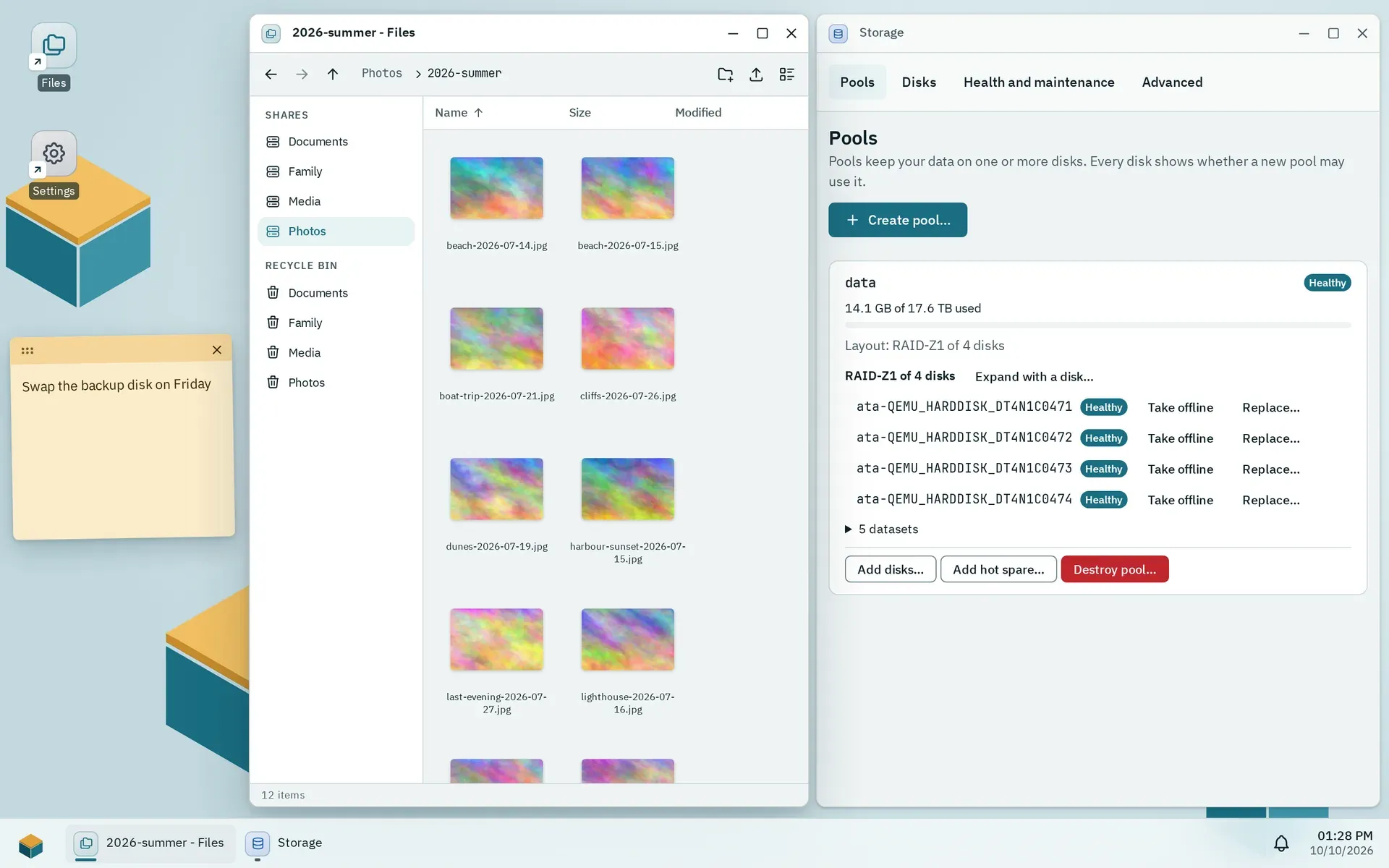
Two shortcuts and a sticky note next to two open windows.
The desktop holds shortcuts to apps and sticky notes. They belong to your account and appear on every device.
- To add a shortcut, right-click an empty spot and choose New shortcut, then an app. Or right-click a running app in the taskbar and choose Add to desktop.
- To add a note, right-click an empty spot and choose New note. A note holds up to 4000 characters and saves itself shortly after you stop typing.
- Open a shortcut with a double-click (a single tap on a touch screen), or select it and press Enter.
- Right-click a shortcut for Open, Rename, Move and Remove from desktop. F2 renames, Del removes.
- Drag icons to move them. Drag on an empty spot to select several. Hold Ctrl or Shift to add to a selection.
- On a touch screen, press and hold for about half a second to open the menu.
- To delete a note, click Remove note. A note with text asks Delete this note? first. The text is deleted on all your devices.
The desktop holds at most 200 items. Icons snap to a grid. On small screens they flow in rows like a phone home screen.
Keyboard shortcuts
Section titled “Keyboard shortcuts”These window shortcuts work anywhere on the desktop except while you type in a text field:
| Keys | Action |
|---|---|
| Alt+Shift+Left / Right | Snap the window to the left or right |
| Alt+Shift+Up | Maximize |
| Alt+Shift+Down | Restore a snapped or maximized window, or minimize a free one |
| Alt+Shift+Space | Open the window menu of the active window |
| Alt+Shift+Page Up / Page Down | Switch to the previous or next window |
Other keys:
- Tap and release the Windows or Command key: open or close the Pithyx menu.
- Escape: close the Pithyx menu, the app switcher or the notification panel.
- On the desktop: arrow keys move between icons, Enter opens, F2 renames, Del removes, Shift+F10 or the Menu key opens the context menu.
Layout per device
Section titled “Layout per device”The box remembers your windows for each browser you use: which apps are open, where, how big, the taskbar position and small details such as the folder open in Files. When you open the desktop again, the windows return. A device is recognized by a small cookie, which holds no personal data.
- Saved layouts expire 90 days after the last save.
- A window of an app that was removed, or that you may no longer use, is skipped. A notification tells you how many.
- Your desktop items, accent color and wallpaper are the same on all devices. The theme and the language belong to the device.
- To copy the arrangement of another device, open your account menu, click Get desktop from and pick the device. If there is none, the list says No other devices. The desktop does not follow you between devices by itself.
Phones and tablets
Section titled “Phones and tablets”There is no separate mobile app. The same page adapts to the screen.
- On a phone, an app fills the screen. The app switcher shows the open apps as cards; tap a card to switch, or Close all. Swiping sideways along the taskbar also changes apps.
- The browser’s back gesture minimizes the open app and takes you to the home screen instead of leaving the desktop.
- On a tablet, windows are maximized and you can snap two side by side.
- Press and hold to open menus. A single tap opens a shortcut.
Related pages: Files, Using apps, Your account.